Cloud SQL Instances
The Cloud SQL service in ANDES enables centralized management of PostgreSQL database instances for LATAM services, facilitating Day-2 operations and database maintenance.
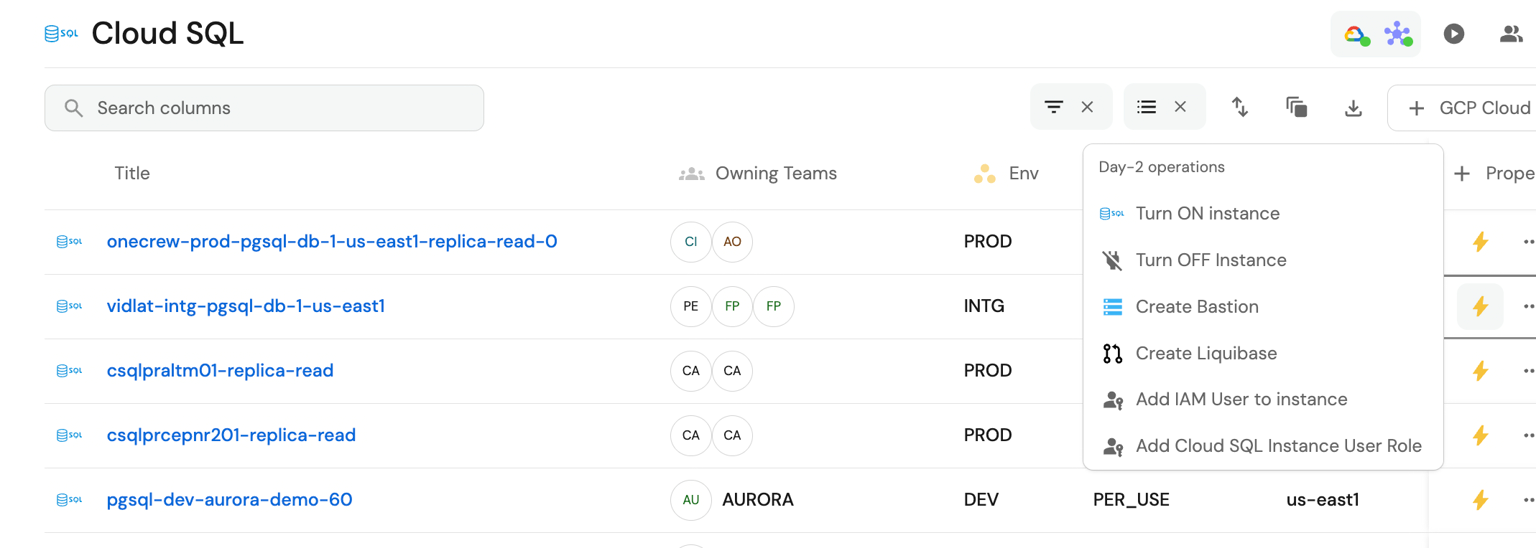 Cloud SQL main screen
Turn ON / OFF Instance
The ANDES and FinOps teams are collaborating closely on integrating an automated system
for turning technology infrastructure on and off. Currently, this system allows
controlling the shutdown and startup of Cloud SQL and VM database instances, optimizing resources
and generating operational and economic efficiencies for the organization.
- Go to the main screen of Cloud SQL Instances Home > Developer >
Environment Management >
Instances SQL - Find the instance and select the ⚡️ action
Turn On InstanceorTurn Off Instance.
Create Bastion
In scenarios where you want to strictly limit who can access
Cloud SQL instances, a bastion works as a secure intermediate access point.
Instead of opening instances directly to the outside, the bastion is used as a secure "gateway" for access.
- Go to the main screen of Cloud SQL Instances Home > Developer >
Environment Management >
Instances SQL. - Find the instance and select the ⚡️ action
Create Bastión.
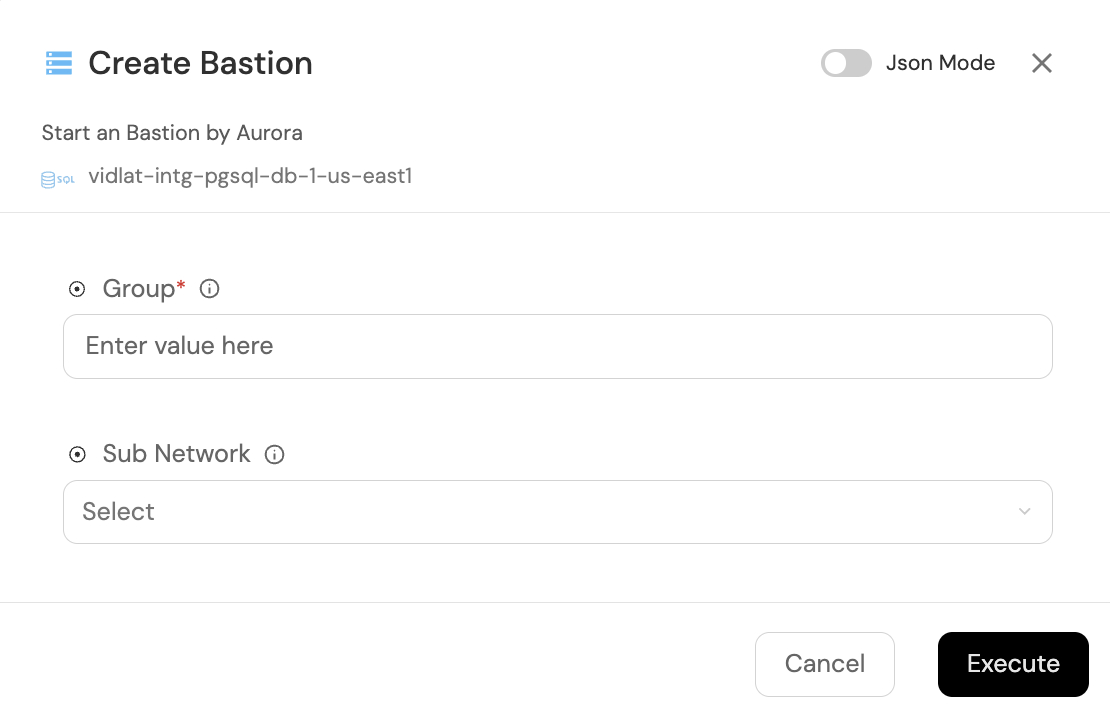 Menu to create bastion
-
Group: Email of the group that will have access to the bastion. E.g.: grp_andes_devs@latam.com
-
Sub Network: SubNet belonging to the GCP project of the Cloud SQL instance.
How does a bastion work in Cloud SQL?
The typical implementation is as follows:
- Bastion Instance:
A VM in Compute Engine runs the Cloud SQL Auth Proxy, a Google tool that manages encrypted, secure, and authenticated connections to Cloud SQL instances. - Secure connection:
From the bastion VM, requests to databases travel over encrypted and authenticated connections, without needing to expose them publicly.
Create Liquibase
Liquibase is an open-source tool that allows you to manage database schema changes in an organized, controlled, and automated way. Its main function is to apply, record, and version migrations or modifications to database structures, ensuring consistency, traceability, and effective collaboration between teams.
With ANDES, a template will be created and placed in the corresponding GitLab repository for the IT Element to
which
the cloud sql instance belongs.
- Go to the main screen of Cloud SQL Instances Home > Developer >
Environment Management >
Instances SQL. - Find the instance and select the ⚡ action
Create Liquibase.
What is Liquibase used for in GCP?
When working with databases managed by Cloud SQL on Google Cloud Platform, Liquibase offers several advantages:
- Change automation:
Allows deploying changes to database structures (tables, columns, indexes) automatically, reducing human errors. - Versioning and traceability:
Maintains a detailed history of each change applied, facilitating auditing and version control. - Collaboration and CI/CD:
Makes it easier to integrate databases into Continuous Integration and Delivery (CI/CD) processes using tools such as Cloud Build, Jenkins, or GitLab.
Add IAM User to Instance
Cloud SQL Instances allow users to authenticate directly using their IAM identity (email @latam.com) without needing a password.
- Go to the main screen of Cloud SQL Instances Home > Developer >
Environment Management >
Instances SQL - Find the instance and select the ⚡ action Add IAM User to Instance
Enable IAM-based authentication for the PostgreSQL instance
- IAM authentication must be enabled
- Go to SQL > Your instance > Connections.
- In the "Authentication" section, enable "IAM database authentication".
- Save the changes (the instance may restart briefly).
The user connects with gcloud and psql
- The user must have the Google Cloud SDK installed and authenticated. Then they can connect as follows:
  gcloud auth login
  gcloud config set project TU_ID_PROYECTO

  gcloud sql connect NOMBRE_INSTANCIA \
    --user=usuario@tudominio.com \
    --database=nombre_basedatos \
    --quiet
Add Cloud SQL Instance User Role
Assigns the roles/cloudsql.instanceUser Role to a user (@latam.com) or group of users
(grp_andes_devs@latam.com)
- Go to the main screen of Cloud SQL Instances Home > Developer > Environment Management >
Instances SQL - Find the instance and select the ⚡️ action
Add Cloud SQL Instance User Role