Code Editors
This section describes the steps to install and configure the following code editors:
- IntelliJ IDEA Community Edition
- Visual Studio Code
- Cursor
These editors are widely used in the software development industry and offer a variety of features that facilitate code writing, debugging, and management.
Visual Studio Code Installation
For more details, you can visit the official Visual Studio Code website at https://code.visualstudio.com/
- macOS
- Windows
- Linux
brew install --cask visual-studio-code
After installation, you can find Visual Studio Code in the "Applications" folder and run it from there.
First you need to install Windows Subsystem for Linux (WSL).
Follow the instructions at https://docs.microsoft.com/en-us/windows/wsl/install
- Visit the official Visual Studio Code website at https://code.visualstudio.com/.
- Click the
Download for Windowsbutton to download the installer. - Run the downloaded file to start the installation process.
- An installation window will appear.
- Follow the steps in the installation wizard, accepting the license terms and selecting configuration options according to your preferences.
- After completing the installation, you can start Visual Studio Code from the start menu or from the desktop shortcut.
Linux is not officially supported at LATAM Airlines.
-
Open a terminal on your Linux system.
-
Add the Visual Studio Code repository with the following command (you can use curl or wget to download the installation script):
Installation on Ubuntu/Debian# Trust Microsoft GPG keycurl https://packages.microsoft.com/keys/microsoft.asc | gpg --dearmor > microsoft.gpgsudo install -o root -g root -m 644 microsoft.gpg /etc/apt/trusted.gpg.d/# Configure VS Code repositorysudo sh -c 'echo "deb [arch=amd64] https://packages.microsoft.com/repos/vscode stable main" > /etc/apt/sources.list.d/vscode.list'# Update repository informationsudo apt update# Install Visual Studio Codesudo apt install code- Once installed, you can start Visual Studio Code from the applications menu or by running
codein the terminal.
- Once installed, you can start Visual Studio Code from the applications menu or by running
Cursor Installation
Cursor is a code editor based on Visual Studio Code with built-in AI capabilities. It is compatible with VS Code extensions and shortcuts, so it will feel familiar if you already use that editor.
For more details, you can visit the official Cursor website at https://cursor.com/download
- macOS
- Windows
- Linux
brew install --cask cursor
After installation, you can find Cursor in the "Applications" folder and run it from there.
First you need to install Windows Subsystem for Linux (WSL).
Follow the instructions at https://docs.microsoft.com/en-us/windows/wsl/install
- Visit the official Cursor website at https://cursor.com/download.
- Click the download button for Windows and run the downloaded installer.
- An installation window will appear.
- Follow the steps in the installation wizard, accepting the license terms and selecting configuration options according to your preferences.
- After completing the installation, you can start Cursor from the start menu or from the desktop shortcut.
Linux is not officially supported at LATAM Airlines.
-
Visit https://cursor.com/download and download the package for Linux (AppImage or
.deb, depending on your distribution). -
For AppImage:
Installation with AppImagechmod +x cursor-*.AppImage./cursor-*.AppImage -
For Debian/Ubuntu with
.deb:Installation with .deb packagesudo dpkg -i cursor_*_amd64.debsudo apt-get install -f -
Once installed, you can start Cursor from the applications menu or by running
cursorin the terminal.
IntelliJ IDEA Community Edition Installation
IntelliJ IDEA is an intelligent and context-sensitive IDE for working with Java and other JVM languages like Kotlin, Scala, and Groovy in all types of applications.
- macOS
- Windows
- Linux
brew install --cask intellij-idea
First you need to install Windows Subsystem for Linux (WSL).
Follow the instructions at https://docs.microsoft.com/en-us/windows/wsl/install
Linux is not officially supported at LATAM Airlines.
sudo snap install intellij-idea-community --classic
- Once installed, you can start IntelliJ IDEA Community Edition from the applications menu or by running
intellij-idea-communityin the terminal.
Local Environment Configuration
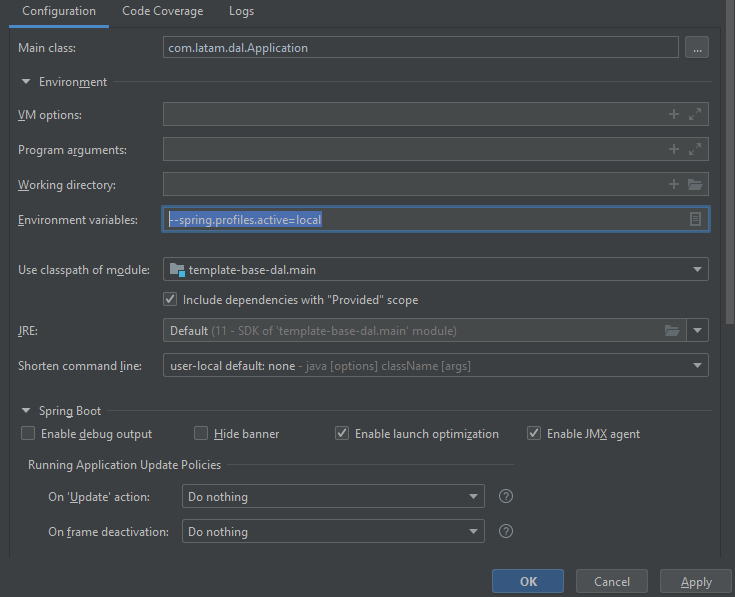
In each project, the local profile option must be configured.
In the menu Run → Edit Configuration add the value -Dspring.profiles.active=local in the
Environment variables option.