Microsoft EntraID
Multi-Factor Authentication (MFA)1 in Azure
To complete this process you need:
- You must have two devices available: a PC (desktop or laptop) and a mobile phone.
- You must have Internet access on both devices.
- You must follow all process steps.
important
If you have already enrolled, you must not do it again.
💻 On a PC:
- To sign in, go to https://mysignins.microsoft.com/security-info and enter your LATAM email and password.
- In Security Info, select
Add sign-in method. - Select
Authenticator app. - Click
Add. - Select
Nexton both messages - A QR code will be displayed to start the process on the mobile phone.
📱 On a mobile phone:
tip
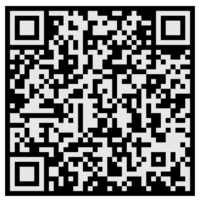
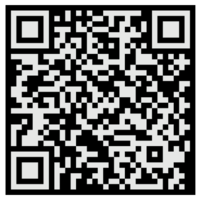
The Microsoft Authenticator app installation is available in the app stores for iOS and Android.
- Android
- iOS
Installing Microsoft Authenticator from Google Play Store.
Installing Microsoft Authenticator from Apple App Store.
- In the Microsoft Authenticator mobile app, to Add a work or school account, select
Scan a QR code. - Scan the QR code that was generated on the previous page.
💻 On the PC then select Next for the validation process.
📱 On the mobile phone, approve the notification that will be generated on your mobile device.
💻 On the PC after approving the notification, and to finish the configuration, select Next.
note
Process details can be found at https://drive.google.com/file/d/1BOWGCCHe2helQEx85Yk1hsdK3xJsLhMZ/view