Getting Started: Access and Authentication in ArgoCD
This technical guide will assist you in requesting access, authenticating securely, and understanding the authorization model implemented within the ANDES Delivery Plane.
Prerequisites
- Active LATAM Airlines corporate account with Multi-Factor Authentication (MFA) configured through Microsoft Entra ID.
- SSH key configured locally and registered under your corporate GitLab account (SSH Configuration Guide).
ENTRAID Authentication Model
ArgoCD uses OpenID Connect (OIDC) integrated with Microsoft Entra ID. For developers, the currently supported interactive access path is the web console with ENTRAID.
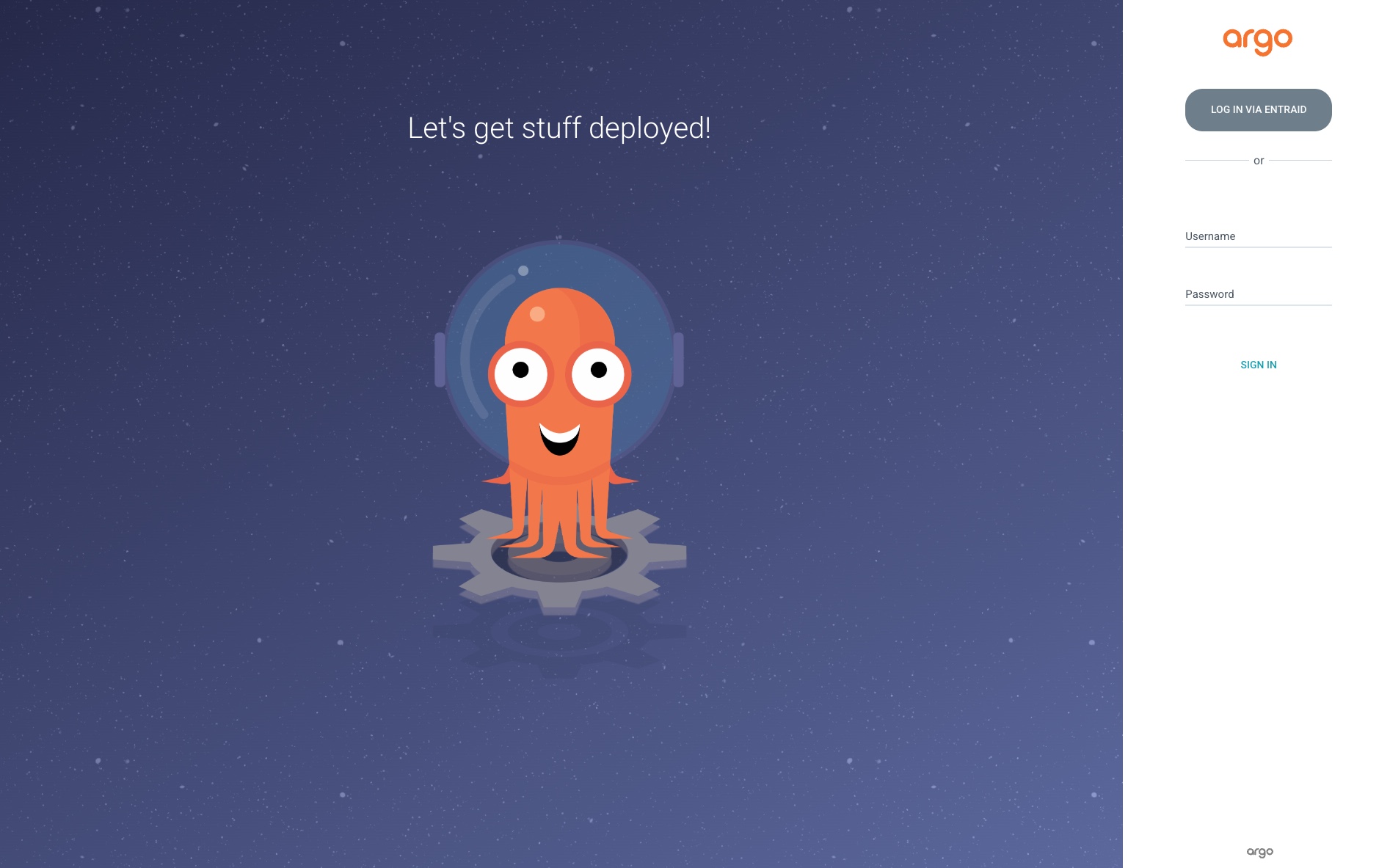
Accessing via the Web Console
- Navigate to the official ArgoCD console for the Delivery Plane at https://argocd-andes.appslatam.com/.
- Click the "LOG IN VIA ENTRAID" button.
- You will be redirected to the Entra ID login screen.
- Complete the login with your LATAM credentials and approve the request on Microsoft Authenticator.
Interactive CLI access is not documented as a user flow because it currently does not work through ENTRAID. Automated pipeline operations use technical credentials/tokens managed by ANDES.
Authorization Model and ANDES AppProjects
To enforce tenant isolation and the principle of least privilege, access control in ArgoCD is structured around AppProjects. Developers are mapped to logical groups and roles within these projects via Entra ID security groups.
Dynamic and Scalable List: The projects listed below represent the initial engineering ecosystem layout. This model is dynamic and expands continuously through the creation of new AppProjects as more business domains and technical capabilities are onboarded onto the DX platform.
Examples of Available AppProjects
| AppProject | Operational Purpose | Scope / Domain |
|---|---|---|
platform-services | Core infrastructure services and controllers | Internal platform plane |
delivery-plane | Orchestrators, CI/CD runners, and deployment engines | Internal platform plane |
resource-plane | Cloud resources and database provisioning | Internal platform plane |
security-plane | Network security solutions, Vault, and certificates | Internal platform plane |
developer-plane | Isolated testing environments and experimentation | Internal platform plane |
observability-plane | Centralized monitoring (Prometheus, Grafana, OpenTelemetry) | Internal platform plane |
argo-plan | Internal ArgoCD synchronization-cycle components | Internal platform plane |
ecargo | Workloads and microservices for the eCargo business domain | Business domain |
RBAC Configuration and Permissions
Access control policies are managed declaratively using the argocd-rbac-cm.yaml ConfigMap located
in the bootstrap repository. Policies are structured as follows:
p, role:<role-name>, <resource>, <action>, <project>/<application>, allow|deny
Scoped Self-Service Roles (DX Developers)
Within each AppProject associated with a business domain, predefined roles are provided:
- Read-Only (
read-only): Allows listing resources, reading pod logs, and checking status. - Synchronization (
sync): Allows triggering manual syncs from the ArgoCD web console. - Application Administrator (
admin): Allows modifying non-critical parameters of the Application.
Example of a Real RBAC Policy (ConfigMap argocd-rbac-cm)
# Assigning the ecargo admin role to specific Entra ID groups (UUIDs)
g, df367a33-589a-4ae5-a6a2-fb698b03e515, role:ecargo-admin
g, 4d8efc67-367b-4522-8478-b4cd99db1914, role:ecargo-admin

# Permissions for the sync/developer role (andesdx)
p, proj:ecargo:andesdx, applications, get, ecargo/*, allow
p, proj:ecargo:andesdx, applications, sync, ecargo/*, allow
p, proj:ecargo:andesdx, applications, update, ecargo/*, allow
p, proj:ecargo:andesdx, applications, action/*, ecargo/*, allow
Verifying Permissions
After entering the web console, you will only see the projects and applications authorized for your Entra ID groups. If an expected application or domain does not appear, request a review of the group associated with the AppProject.
Next Step
Learn how manifests are generated in the KCL Templates section.